 |
ADTF Configuration Editor
|
|
ADTF Configuration Editor
|
This is a good point to start to get familiar with wordings, common usage and more.
With the Standard Edition / Extended Edition subscription, it is only possible to create sessions with single graph level and a maximum of eight graph elements. It is perfect for integrating and testing single custom filters.
If more complexity and nested (included) subgraphs must be used, an Ultimate Edition subscription is required. This is required to design larger measurement or simulation setups.
Standard Edition / Extended Edition, the usage is restricted to a read-only mode.Although the CE is a GUI application it still has some command line arguments. For any purpose, please execute the adtf_configuration_editor with the option --help, which will give you an overview and example usage of available options and commands.
Following ADTF related files are used and handled by CE:
| Type | Extension | Purpose |
|---|---|---|
| ADTF Environment | .adtfenvironment | Provides available plugins, macros , tools (launch/attach/external), projects and documentation. |
| ADTF Plugin | .adtfplugin | Provides filters, streaming sources/sinks and services. |
| ADTF File Plugin | .adtffileplugin | Provides additional reader, processor and (de)serializer. |
| ADTF Plugindescription | .plugindescription | Provides information about a plugin content and its dependencies. |
| ADTF Project | .adtfproject | Bundle of sessions, graphs and systems. |
| ADTF Session | .adtfsession | Defines a system + graph + properties combination. |
| ADTF Graph | .adtfgraph | Defines data receiving/sending/processing, filtering, calculation, visualisation, etc. |
| ADTF System | .adtfsystem | features, required platform dependencies, environment variables to use and (file)plugins to load. |
| ADTF Properties | .adtfproperties | Defines the adjustment of the used components within graph/system. |
| ADTF UI Layout | .adtfuilayout | Defines the arrangement of the UI elements at runtime. |
| (Legacy)CE Settings | .cesettings | Provides remote connection ports. |
After loading a project, the CE will appear similiar to the following screenshot:
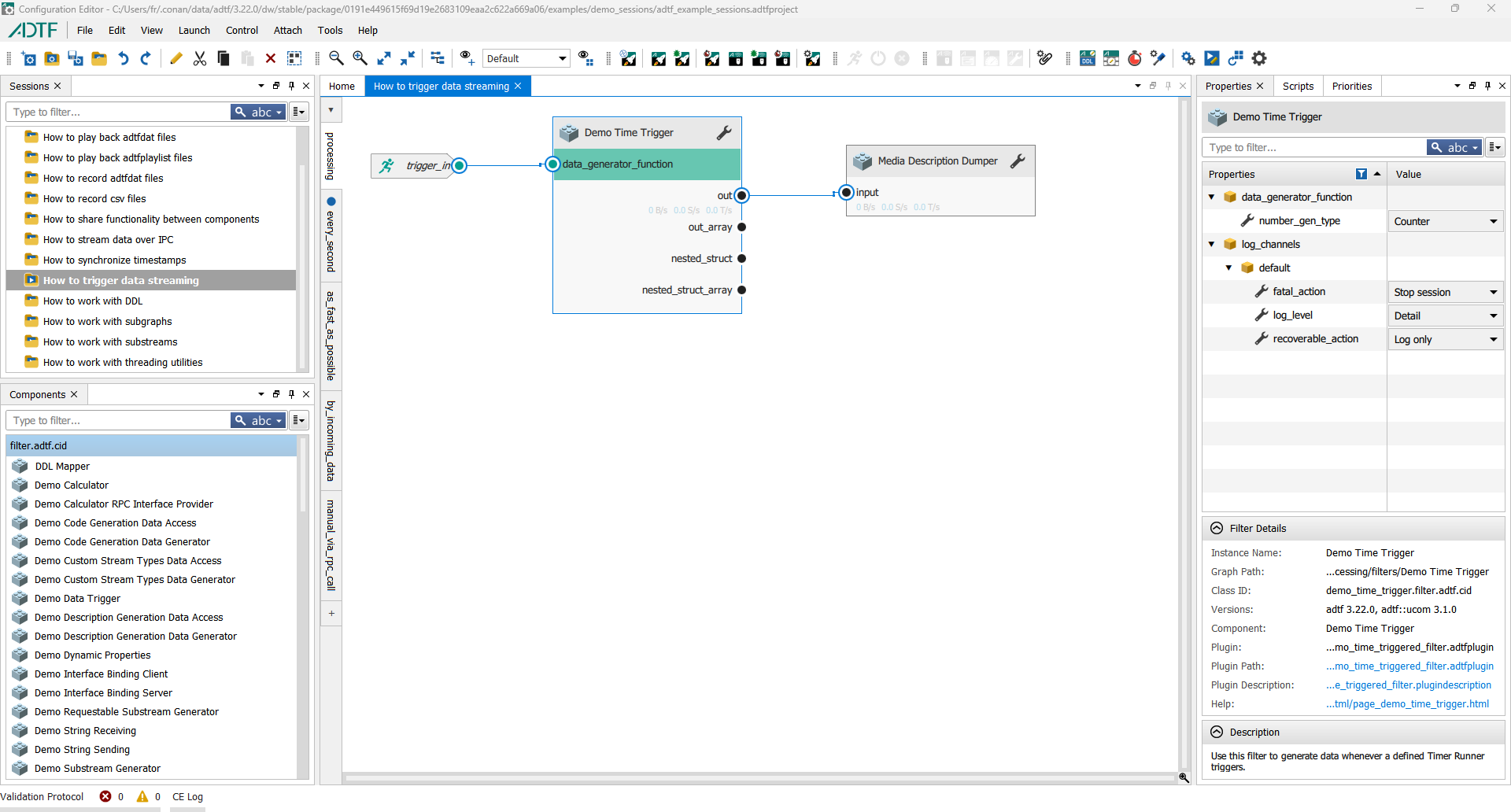
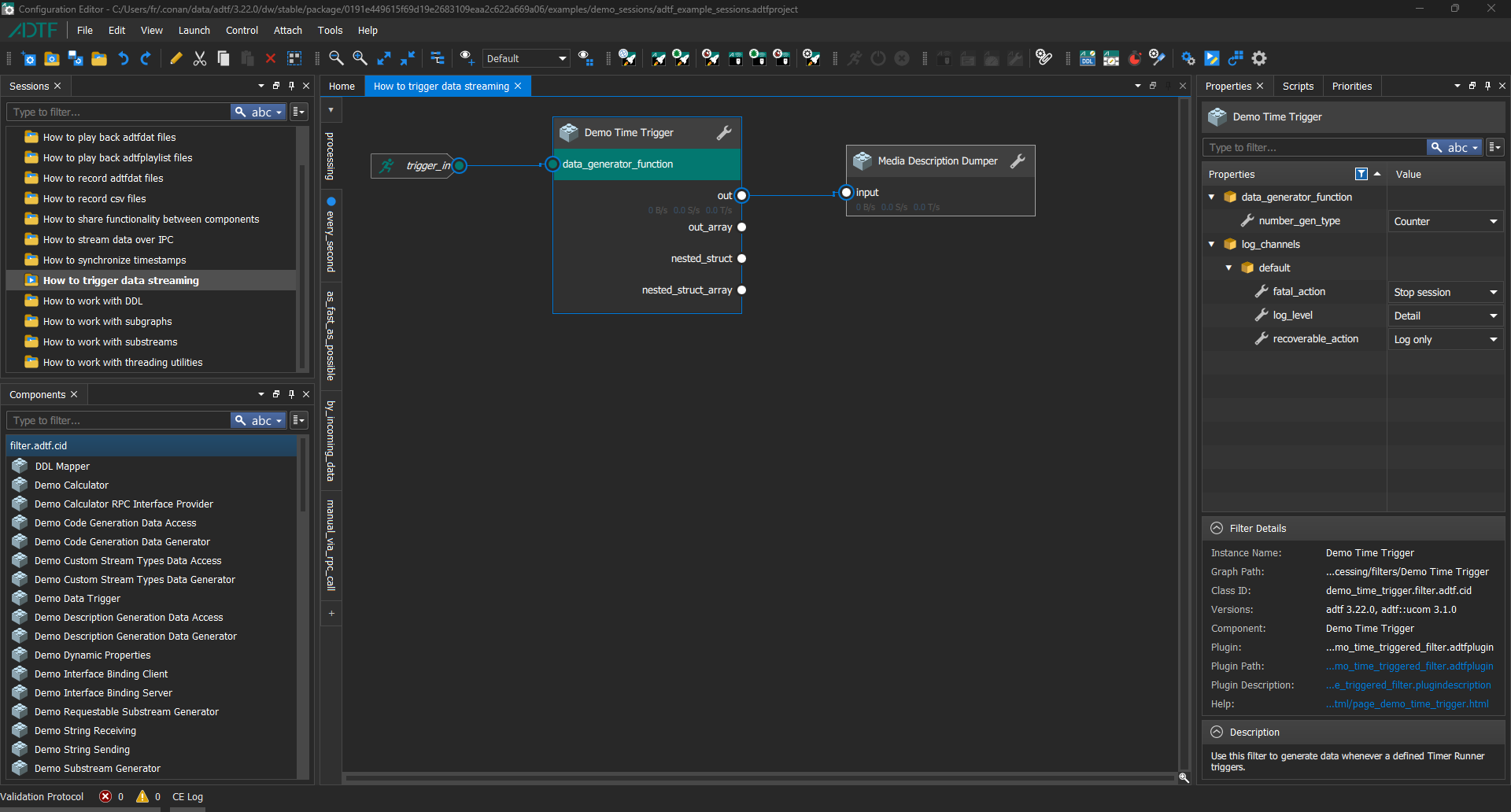
You can switch between light and dark mode and even read this setting from your OS. The system setting might be very helpful to fit to your other tools or also react to changes from outside (e.g. brightness sensors or other other OS tools/automization). See Tools > Options... > General:
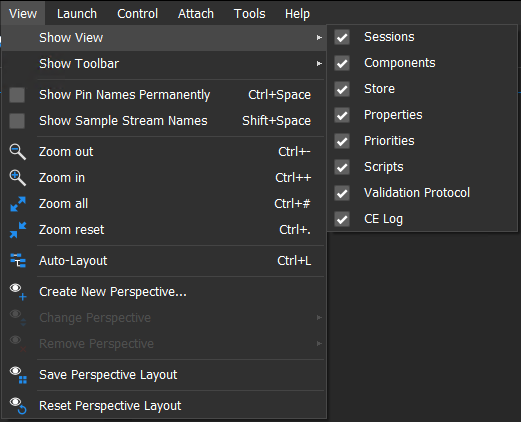
The CE is a combination of different views (widgets) and comes with a default perspective (layout), which can be resetted anytime under View. Within this menubar entry you are able to enable or disbale these views and save own perspectives, which can be used and switched for different use cases.
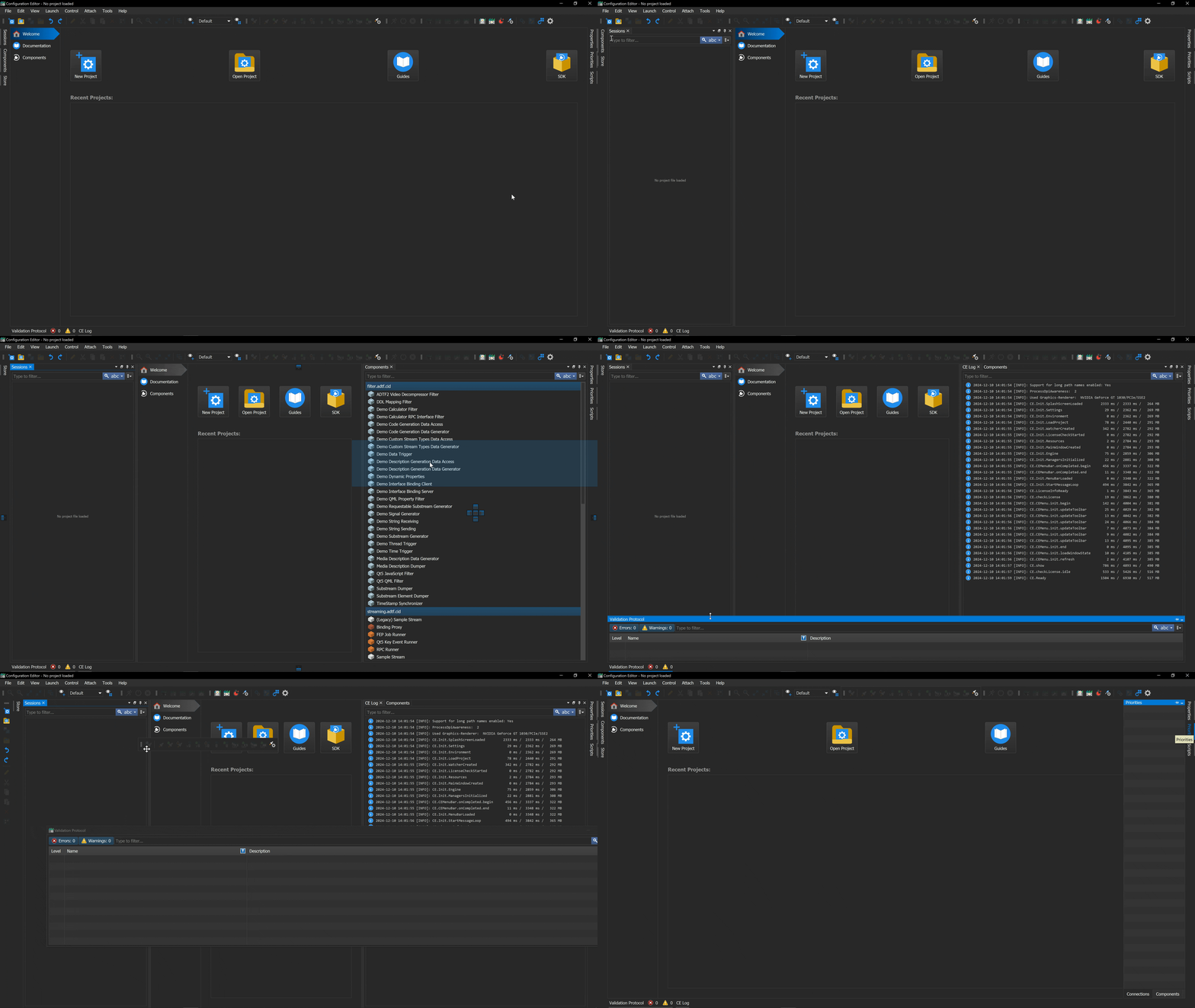
This is very helpful especially when you do not only want to enable or disable specific views, you can also tab, dock, float, pin or rearrange each view including resizing and auto-hover. Feel free to adjust your perspective to any arrangement that fits best for you. The setup will be stored version-independent so you can easily switch or migrate the CE versions.
The most useful menubar entries are also available as toolbar, which can be also hide, move or float like each view widget.
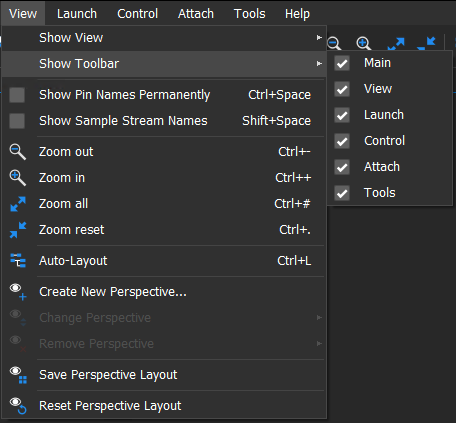
Each view has a different purpose, but it is also very important to know that they are connected to each other for interaction and provide the same behavior.
You will find a search bar in almost every view including the possibilty for changing search behavior, filtering, sorting and many more. For that, use the buttons on the right of the searchbar:

Another basic behavior is that every view has a context menu with all available actions with its specific purpose.
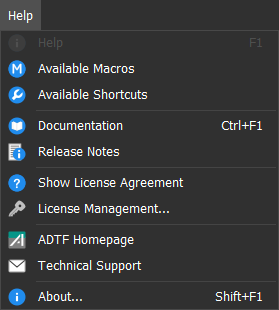
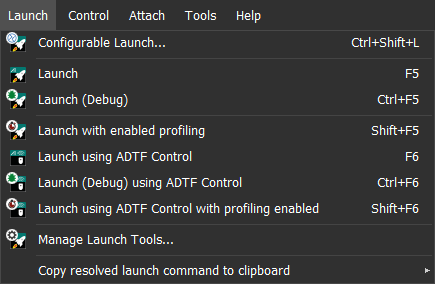
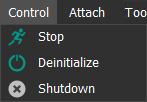
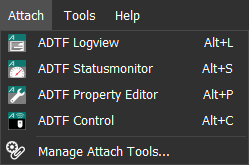
Within section Sessions you will learn, how a session can be launched, connected, controled and attached. Please also keep in mind, that launching and any remote access to a session is a very central use case so it is also available in the menubar and not only within the context menu of a session.

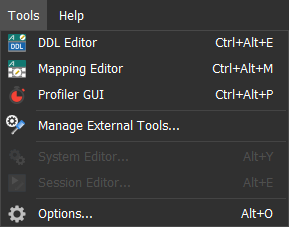
The System Editor is available when a session has been selected to configure any runtime dependency or functionality. It can be opened from Sessions, Filter Graph Editor or directly via the menubar.

If your session incorporates with filter, streaming sources or streaming sinks that have dependencies to libraries outside of ADTF this is the right place to define them. Environments variables are useful to abstract away from platform specific paths usable as macros which makes it easier to transfer project files between different PCs or operting systems. You can define additional platform dependencies (e.g. OpenCV or Qt shared libraries), services and (file)plugins.
If a component defines its dependencies (services, shared libraries) properly, the required services are added automatically as soon as the component has been dropped from the Components view into an Filter Graph Editor. If you want to know more about how components can define their dependencies follow this link.
The order in wich services are loaded can be influenced in two ways:
If an service offers configuration options they will be shown by selecting the service and if you want to rename an service the Rename entry is your friend. Also if you want to define services in a different runlevel.
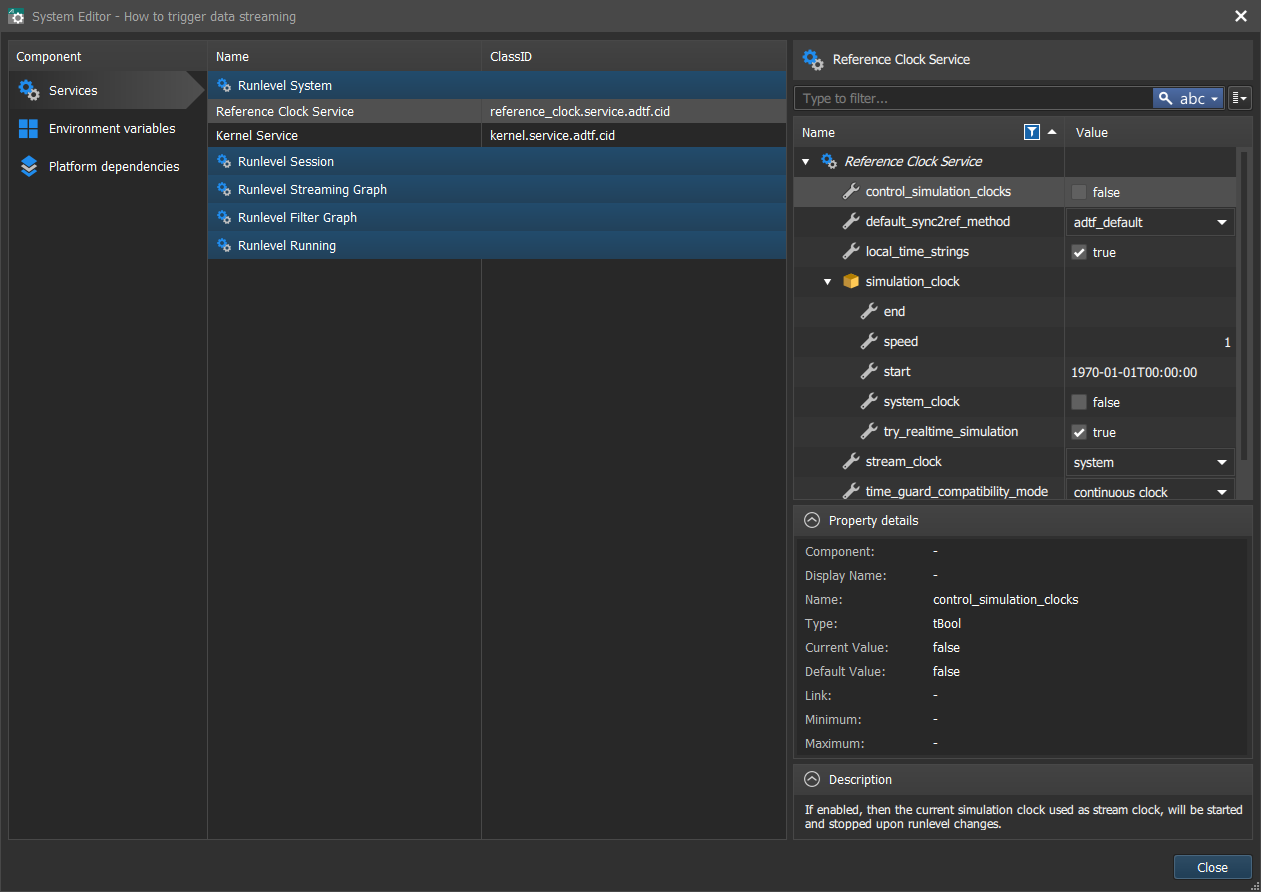
In order to avoid invalid system file paths when distributing a project, define an environment variable to abstract away the system file path using them as macros. All you have to do when moving to a different PC is adjust the environment variable accordingly.
If you want to make the CE use OS environment variables set <os> as variable.
<os> is case sensitive and must be lower caseNow you can set the OS environment variable MY_TOOLBOX before you launch a session.
This is recommended if e.g. some plugin paths are different on different machines, so the CE will use this variable name for path settings in system file.
But in most cases the defintion within your adtfenvironment files are fine.
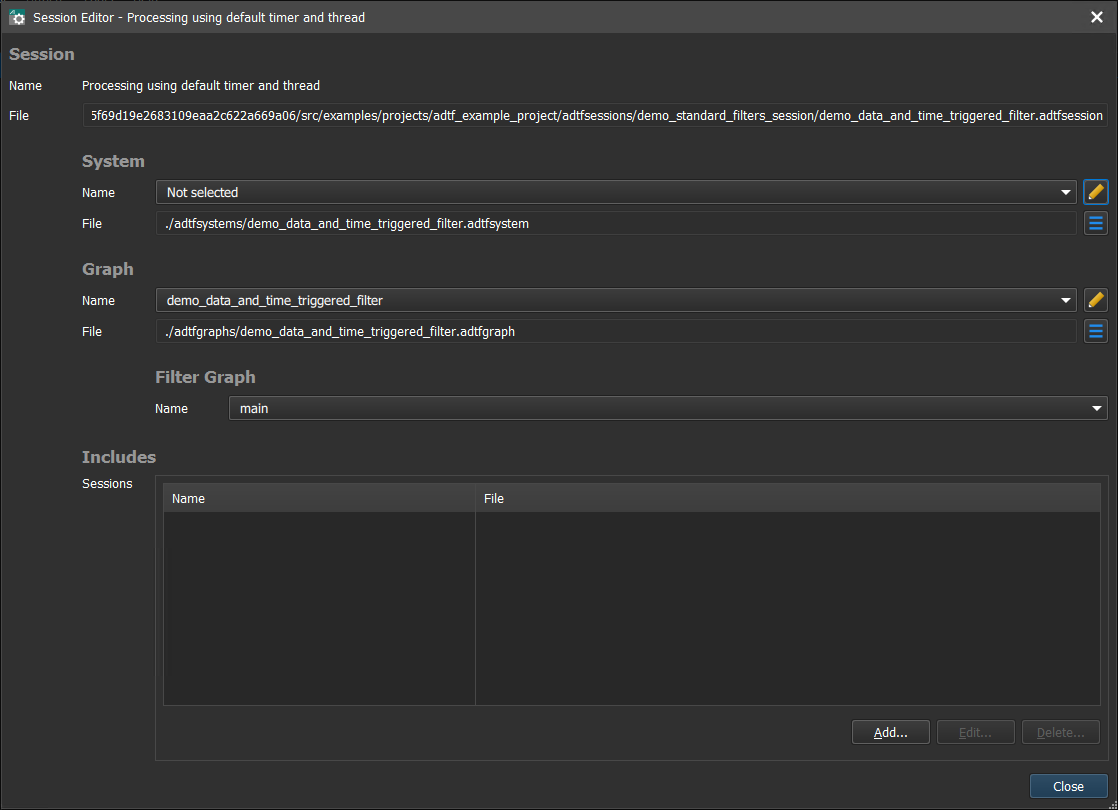
The Session Editor is available when a session has been selected to create the used graph, system and property file. It can be opened from Sessions, Filter Graph Editor or directly via the menubar.
You can also include graphs from other sessions, especially for reusability issues. To make them available in the list of available subgraphs inside the Filter Graph Editor, you have to add the related sessions here in Session Editor. Including a graph from another session will not be a copy (only linked) and treated the same as adding a subgraph, but more like a blackbox - your scope will stay in the current session you are working on.
After reading this page, you should have a good overview about common usage and recurring functionality.
Let's have a look at the different areas of the CE.