 |
ADTF Configuration Editor
|
|
ADTF Configuration Editor
|
This is the entry point after creating or loading a project, where you can switch, add or remove the containing sessions showing also their hierarchical relation when included. To define the relation between graph, system and properties within a session, please use the Session Editor. To configure and extend the functionality of a session for runtime, please use the System Editor.
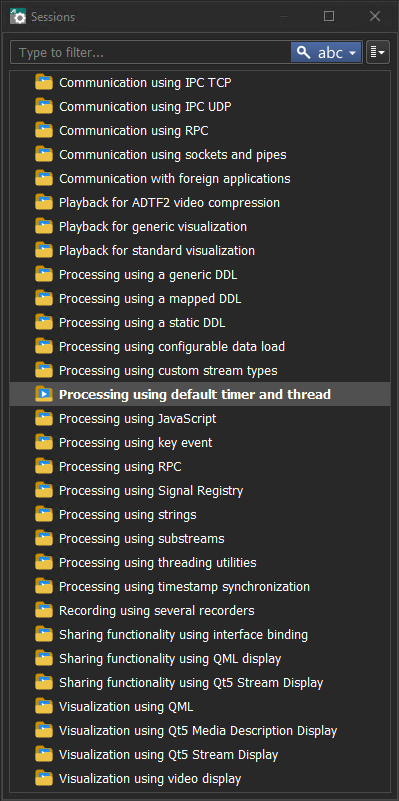
Besides basic adding, renaming, opening and removing sessions from your loaded project, the context menu contains configurable launch options (see Tools > Options... > Launchers).
cmd (Windows) and xterm (Linux)). xterm on Linux (x86_64) or you adapt the launch options. 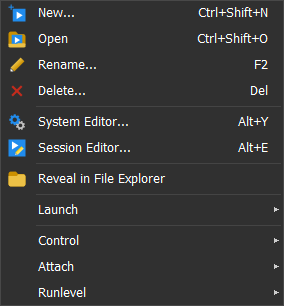
The CE implements an RPC client which makes it possible to connect to a session - better say the related RPC interface of the ADTF Launcher. This will provide the user the option to remote control from within the Sessions View.
Under Tools > Options... > Remote Connections it is possible that the CE will always automatically connect to specified url, no matter if already running or needs to be launched, it will polled and connected when available: These can used with any specifed launcher by using the generic Launch... command:
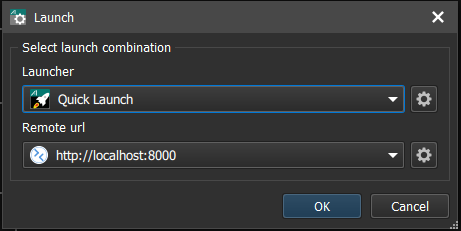
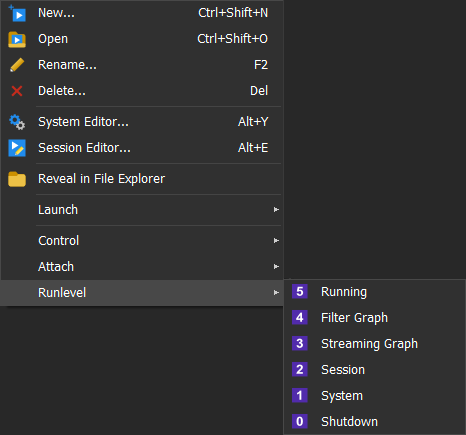
Once there are one or more sessions connected, it will be visualized within the Sessions view by displaying the current runlevel:
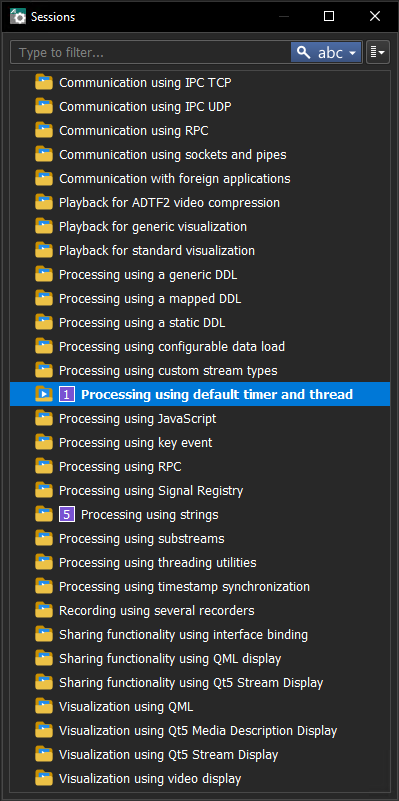
Within the context menu you will find options to control the session after launched and connected, e.g. to control runlevels, attach with other ADTF tools or handle running transitions like start, stop or init steps.
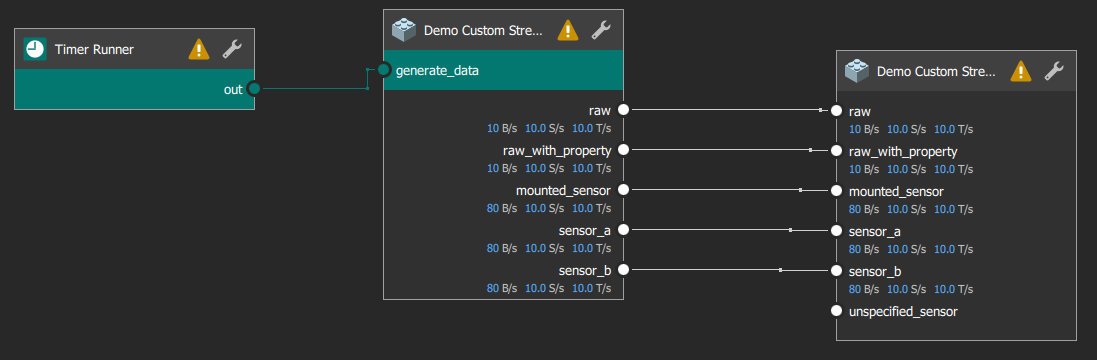
Another benefit is the visualization of live statistics directly at the Sample Streams within the Filter Graph Editor:
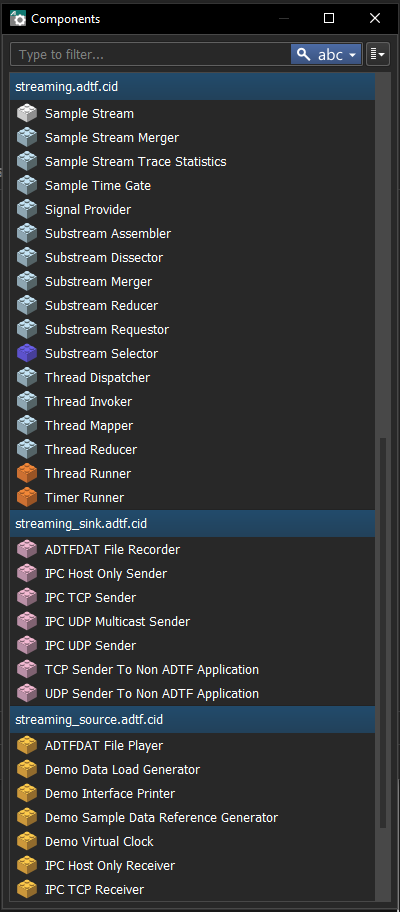
The Component view holds the elements that can be drag and droped into the Graph Editor. You can choose between Type and Class ID for grouping.
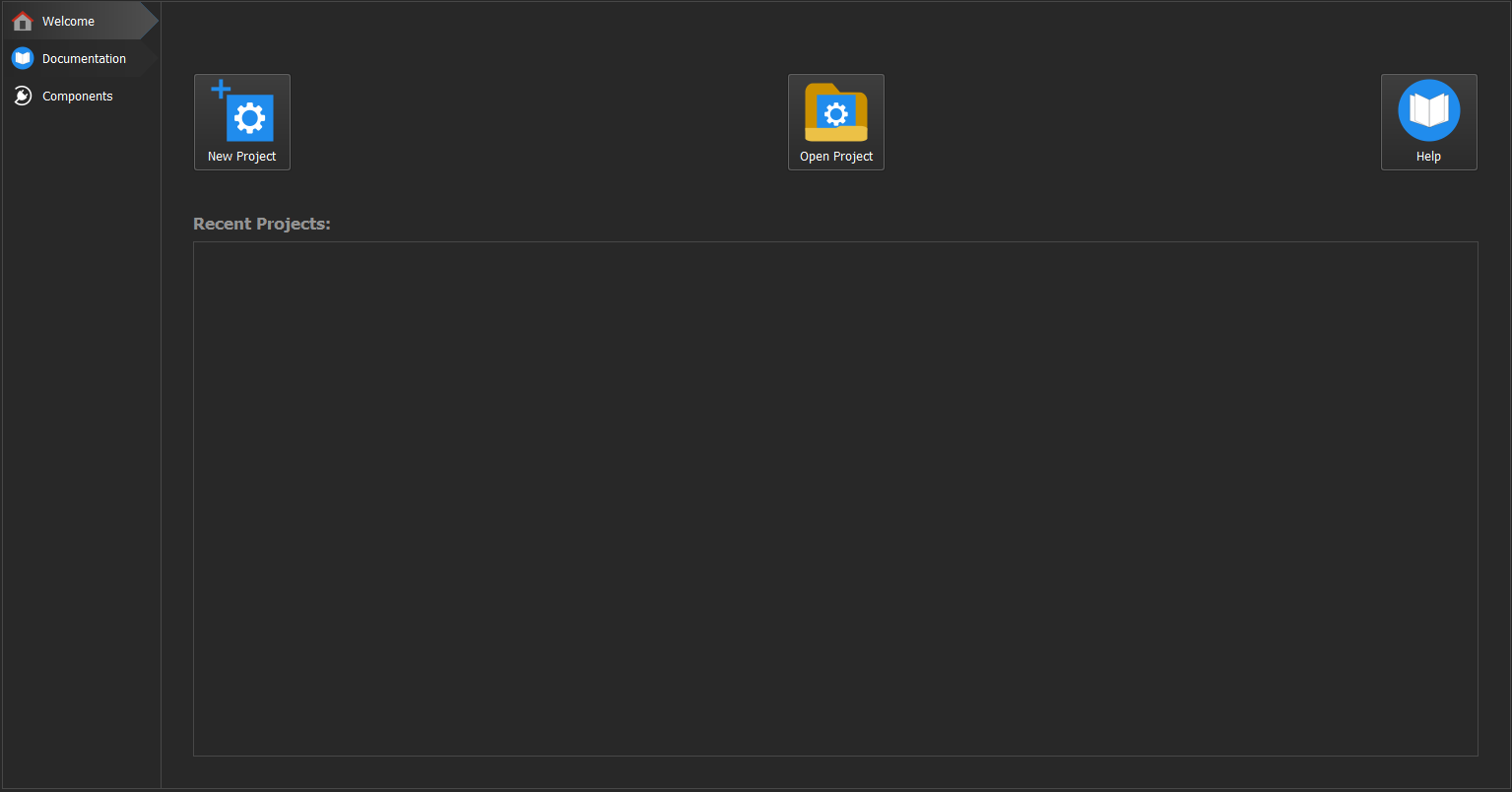
This view is the main entry point for the CE. The Home view is not only a landing page, it offers some quick actions to create or open projects and jump to documentation at the top. The Left navigation bar provides some default actions linking to additional information which can be adapted and extended in your cesettings file (see Tools > Options... > Home View).
The filter graph is where all about data streaming and runtime behaviour takes place. You can use filters as well as streaming sources and sinks. We recommend to separate your graphs info different parts (e.g. data receiver/transmitter, playback, data processing, visualization, etc) by using subgraphs/included graphs.
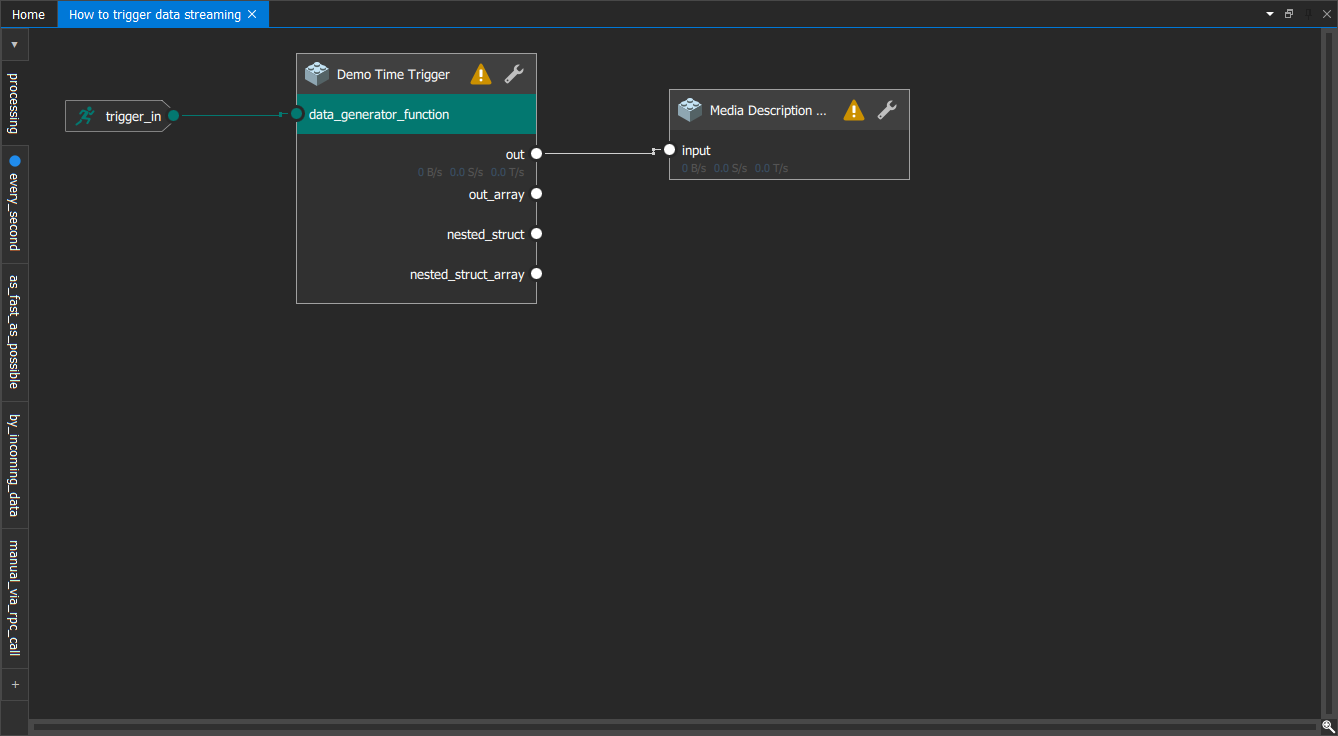
Processing can be triggered with the help of different types of Runners. By default triggers are sent between the data samples and stimulate the following filter to do further processing, however if this behavior is not desired, connections can be configured to be asynchronous. In this case Timer Runner can be used to take control over the exact timing (this can be useful for expensive visual updates) or Thread Runner to do heavy processing on a different thread. To let data flow between two elements place a Sample Stream between them and connect the pins by drawing a line (will be added automatically during performing a pin-2-pin connection).
Graph files can contain several graphs, which can be nested together as subgraphs. For your orientation, each graph window represents one graph file and shows the session in the tab title on top. The tab bar on the left are the single graphs within the shown graph file. You can add subgraphs and ports by drag and drop from Components View in the same manner as any filter or similar. You can open and jump into these subgraphs via context menu or <Ctrl> + <Click> and edit both side-by-side.
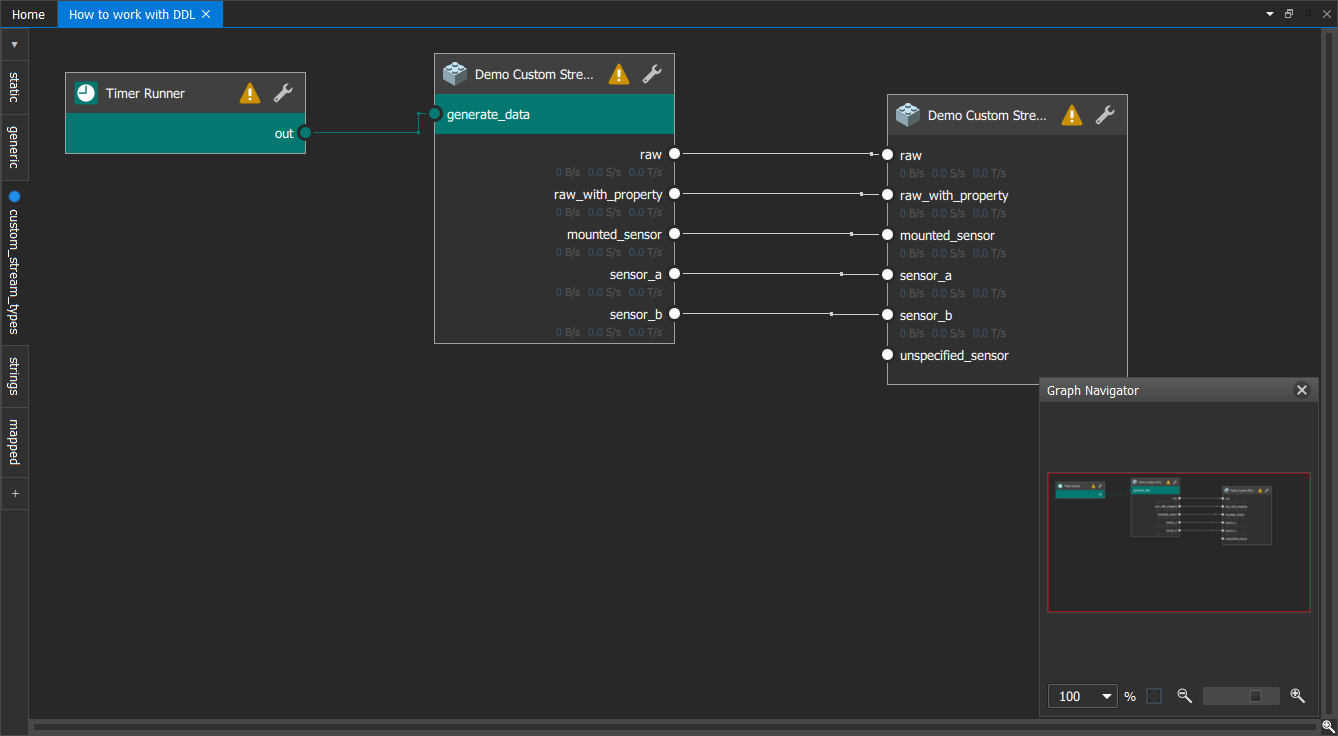
The Filter Graph Editor contains also a Graph Navigator at the bottom right of the graph area for convenience regarding scrolling, moving, zooming and item selection in larger graph setups (see section shortcuts). To show click on the icon on the bottom right, per default it will behided again when changing the scope. You can adjust these behavior under Tools > Options... > Graph Editor
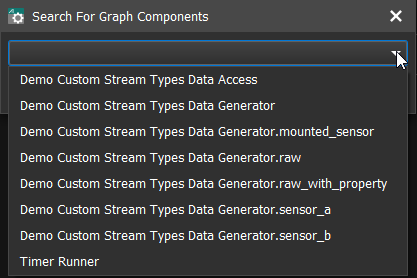
Due to the fact that graphs should be seperated but can be as well very large, we offer a Quick search. This will help to find and jump to all containing components within the selected graph, which is very helpful especially for a Sample Stream or Binding Proxy which label name is hidden and only visible as tooltip for a better overview. It is available in the context menu anywhere in the Filter Graph Editor as well as a shortcut. It provides a dropdown menu including all containing graph components as well as an case sensitive auto completion in the type field. Use the arrow keys of the keyboard to complete the search strings or navigate through the component list.
When you select more than one component within your graph, an align helper bar will appear in the upper left corner:
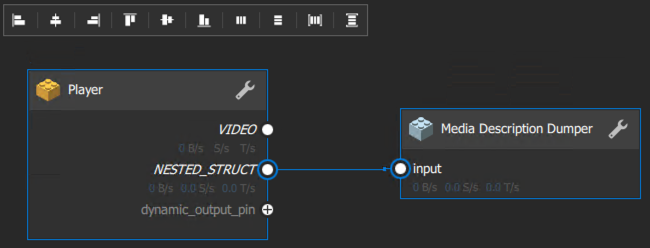
| Button | Change | Orientation | Keep |
|---|---|---|---|
| move all selected components to the left | farest left border of all selected components | vertical coordinates |
| move all selected components to the center | horizontal center of all selected components | vertical coordinates |
| move all selected components to the right | farest right border of all selected components | vertical coordinates |
| move all selected components to the top | farest top border of all selected components | horizontal coordinates |
| move all selected components to the center | vertical center of all selected components | horizontal coordinates |
| move all selected components to the bottom | farest bottom border of all selected components | horizontal coordinates |
| rearrange all selected components horizontally | user specified distance | vertical coordinates |
| rearrange all selected components vertically | user specified distance | horizontal coordinates |
| rearrange all selected components horizontally | calculated distance | vertical coordinates, outer horizontal borders |
| rearrange all selected components vertically | calculated distance | horizontal coordinates, outer vertical borders |
If components from Components or the Filter Graph Editor provide some configuration options or additional information and help, it will be displayed within the Properties View by selecting the component within its Graph / System Editor. It is also possible to jump properties from dependent services.
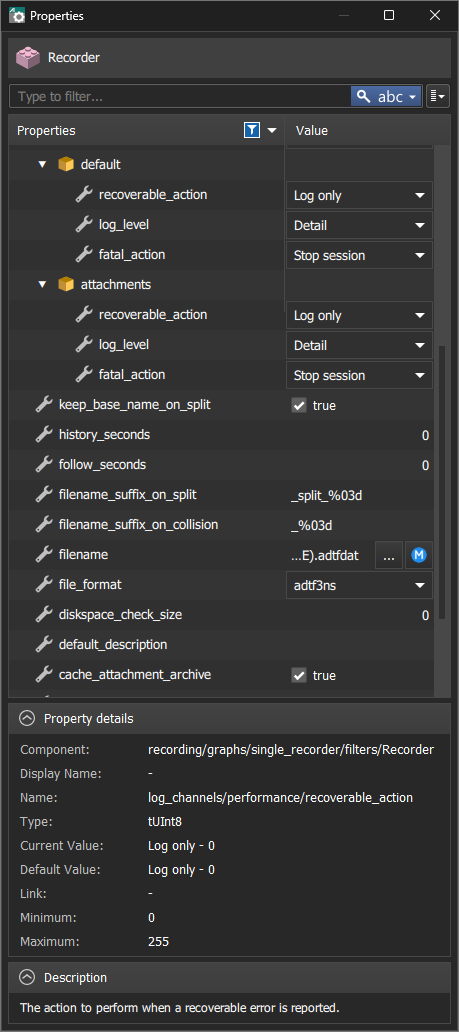
It is possible to add properties manually to each components and whole graphs. This is useful to create generic graphs, which can be included as configurable subgraphs. Furthermore you can link properties of components to graph properties to make them available to set from "outside" (parent graph). Please also have a look at Use and link graph properties for more information.
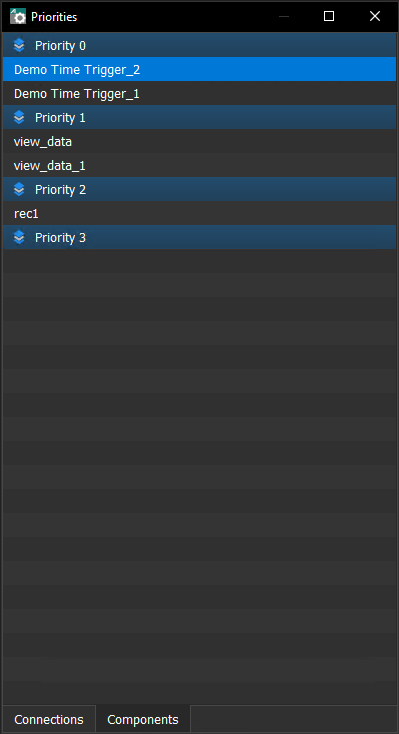
This view is to show and edit the priority of connections and components.
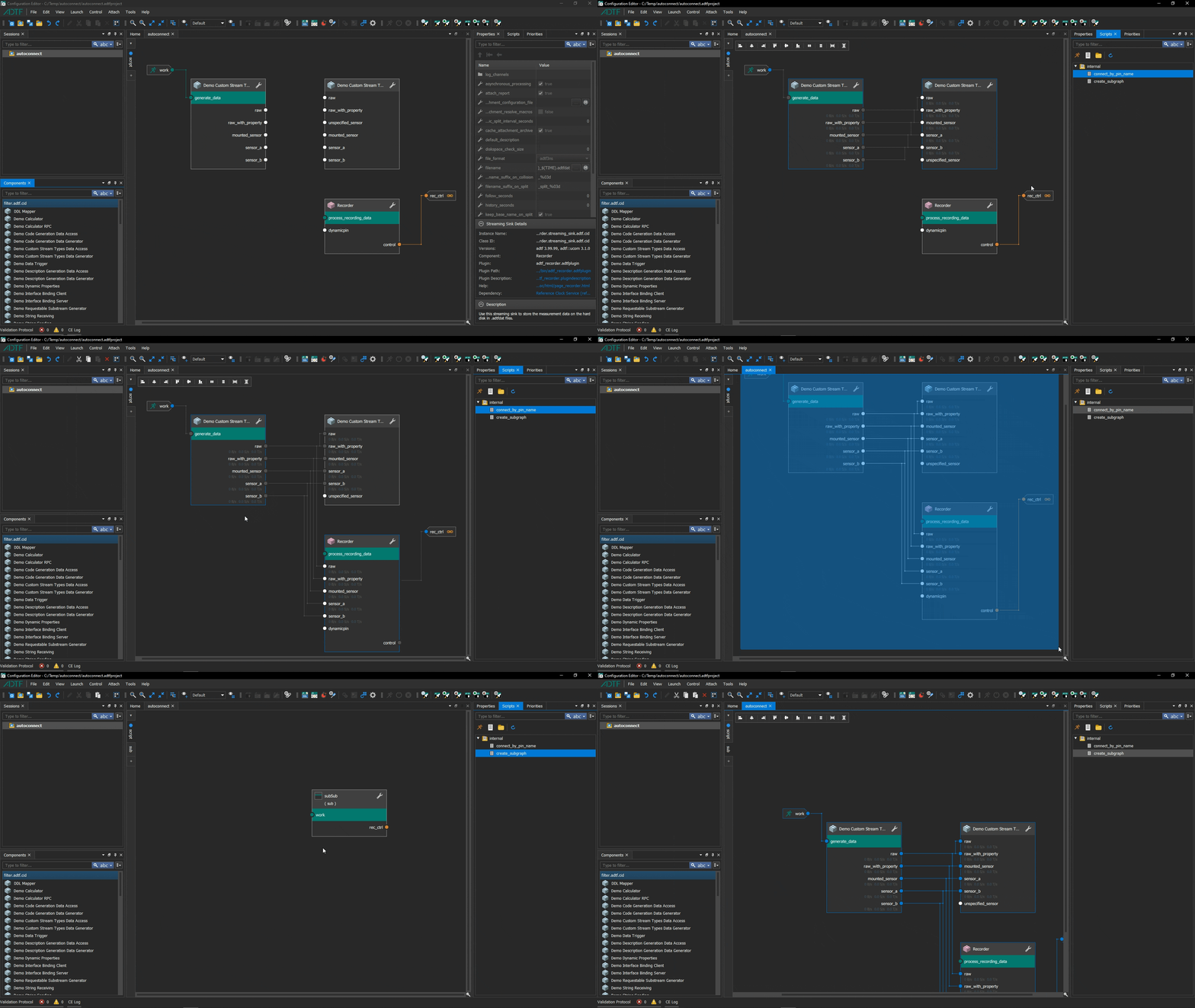
This view shows available scripts for automization and convenience within the ADTF Configuration.
Scripts are provided by adtfenvironment files within the node ce_plugin_directory.
All session, graph, system, property or setting related problems spotted by the CE are displayed here.
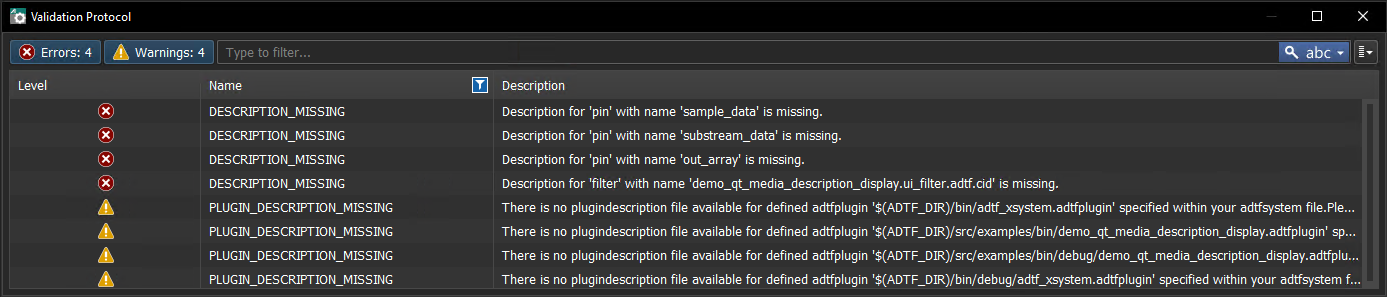
To get further information or help to solve the the entry, please consider the context menu for details:
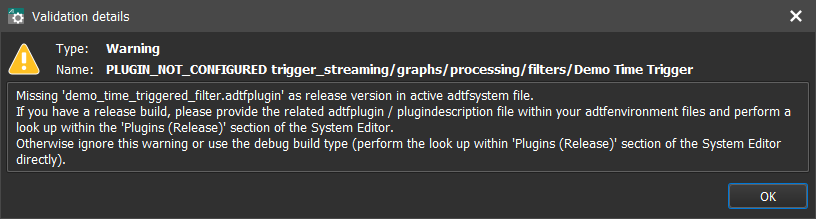
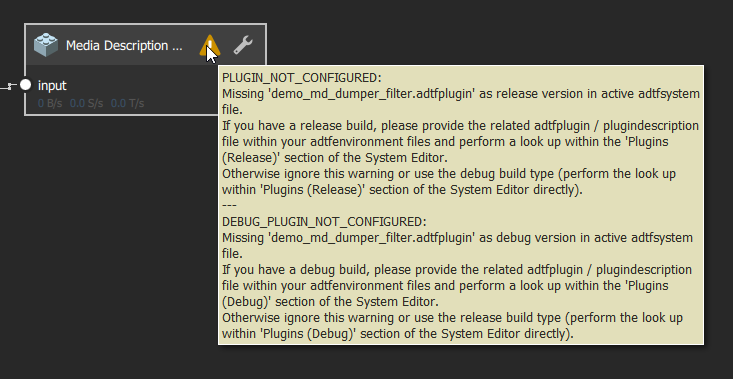
If the problem is related to a specific graph component, it will be also marked within the Filter Graph Editor including a tooltip.
Within this view, you can redirect the console output including also JavaScript / QML occur within the CE:
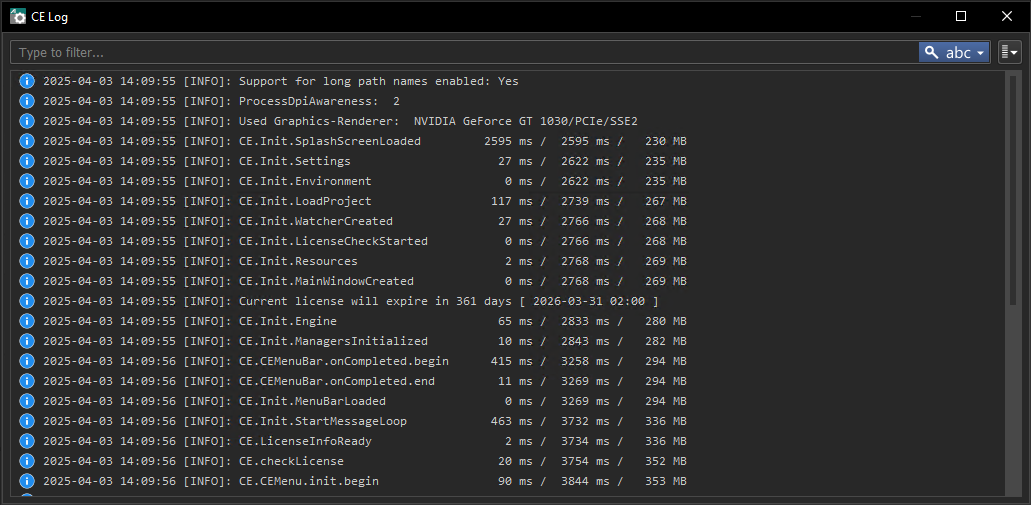
This can be different loglevels from the CE itself, but also come along inside custom Qml Filter Editor scripts.
You can enable/disable the logging persistent within Tools > Options... > General or temporary by starting the CE with flag --enable-logging.
After reading this page, you should have a good overview about all available views and their purpose.
Let's have a look at the varios options of the CE.


