 |
ADTF Configuration Editor
|
|
ADTF Configuration Editor
|
ADTF comes with built-in profiling support based upon easy_profiler.
To make use of it and analyze your instance, threads and blocks, the code must be instrumented, which has been done at several impotant and interesting spots in our architecture already.
The Profiler GUI use the build-in profiling support to analyse timing and threading behaviour based on easy_profiler.
To add profiling blocks to your own code, just
and use the supplied macros from easy_profiler.
For example just use the EASY_FUNCTION() macro in each of your functions you want to profile.
The ADTF SDKs and Services are already instrumented so you can start profiling right away.
For more options use
regarding profiling support.
Now you can easily start using the predefined Tools > Profiler GUI menu entry within the ADTF Configuration Editor or click the related icon within the Tools toolbar.
bin folder, we recommend to use the delivered profiler_gui.bat (Windows) / profiler_gui.sh (Linux) files to start. Qt delivery is located, which will be set by these scripts.After start is complete, click the connect button and check the available profiling blocks with the help of the according button in the toolbar. There you can select which blocks you want to record, but most of the time you can just leave them all enabled. Make sure the ADTF Session is doing whatever you want to profile and then hit the Capture button in the toolbar. Press stop when you have collected enough data.
The following screenshot shows a profiling ADTF Session:
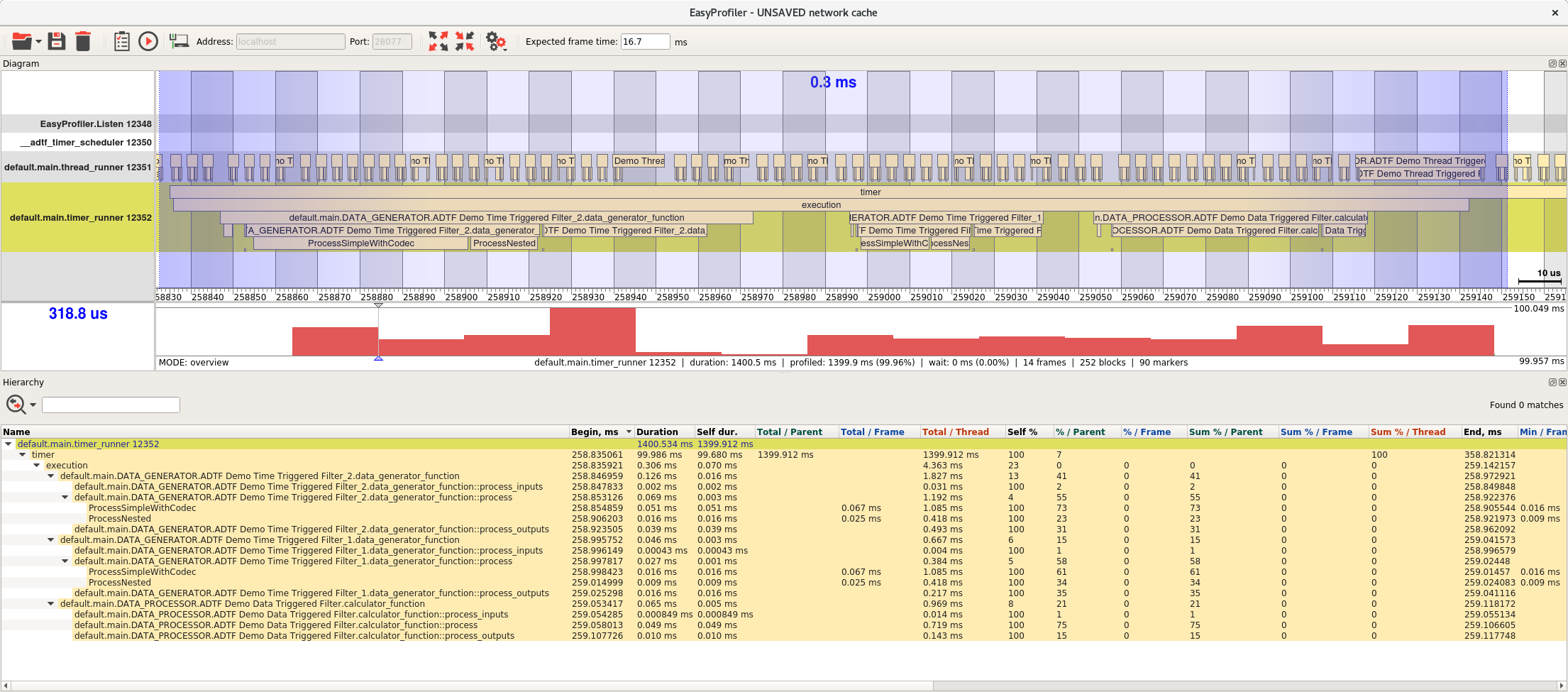
The upper bar graph shows all threads and their executed blocks. You can select a time range with pressed right mouse-button and get detailed information in the lower tree view. Clicking and hovering the mouse over a block will give you a pop-up with detailed statistics. The bar graph in the center will then show you the execution time over the whole capture period, there you can spot any spikes easily.
In our example we can observe that the timer_runner first executes the trigger function of Demo Time Triggered Filter 2 then the trigger function of Demo Time Trigger 1 followed by the execution of the trigger function of Demo Data Trigger.
When taking a look at the thread runner we see that the trigger function of the Demo Thread Triggered is executed in a busy loop fashion. Right after the Demo Data Trigger has processed its output we see an increase in the execution time on this thread as well, as this trigger function is waiting for some data to be available.
After reading this page, you should have a first impression how ADTF and the Easy Profiler are connected.
Let's have a look at the DDL Utility redeploy to gather some information about tooling related to DDL.